
Faster Layer Styling: Copy, Auto-Apply, Save
What you'll learn
- How to set styles with the Layer Styling panel
- How to create and use QGIS style files
- How to apply styles automatically when you add a layer
Recommended for
- Anyone who wants to make layer styling more efficient
- Anyone who wants to share their style settings with others
Introduction
In QGIS, you can set many kinds of styles, such as symbology, labels, and opacity, from the layer properties. You can make most settings in the Layer Properties dialog, but repeating the same work every time or opening and closing the dialog for each change can be tedious.
This article introduces convenient features that make your work smoother: the Layer Styling panel, copying and pasting styles, and style files.
To learn how to style vector data, see the following articles.
Layer Styling panel
The Layer Styling panel lets you edit settings such as symbology, labels, and opacity. You can work while checking the map canvas, without opening the Layer Properties dialog.
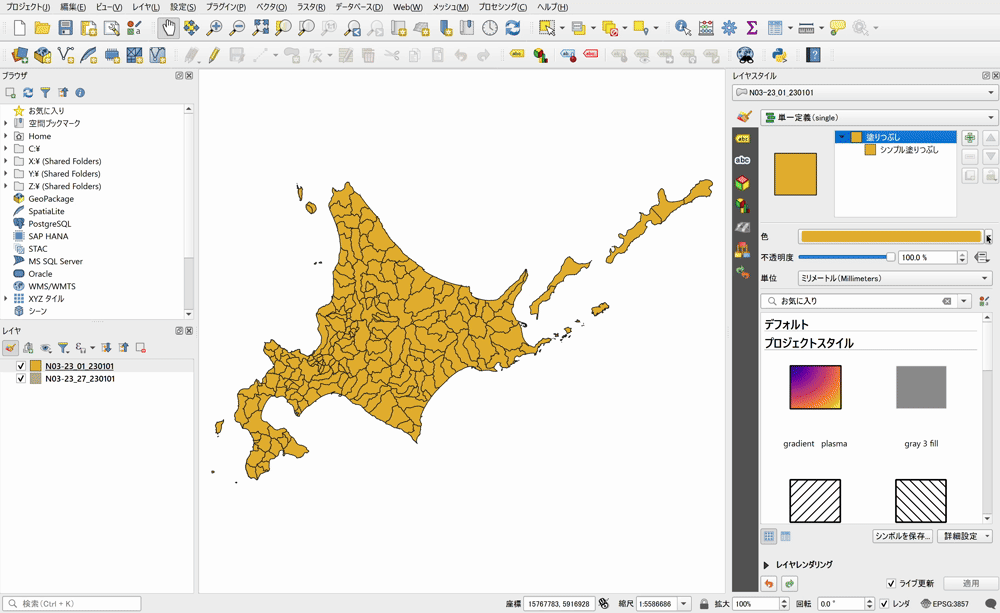
To show the panel, click the Open the Layer Styling panel button at the top of the Layers panel, or right-click the toolbar and check Layer Styling.

Check Live update at the bottom of the panel to apply changes such as fill color and opacity immediately, so you can set styles intuitively while seeing the styled result.
Copy and paste styles
You can carry over a style you have already set to other layers as is.
For example, suppose you set a symbology with outlines only and no fill on an administrative area layer, and labeled the features with the municipality name field. Setting up the same thing on another layer takes some effort, but copy and paste carries over the settings exactly, so you can work efficiently.
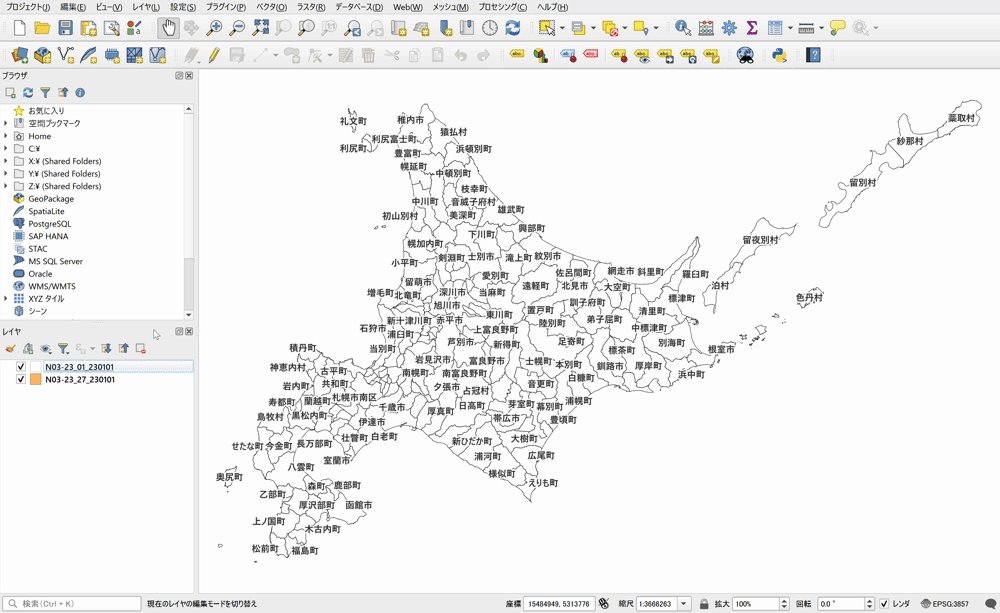
Right-click a layer and select Styles → Copy Style to copy its symbology and label settings. Then right-click the layer you want to apply the copied style to and select Styles → Paste Style. You can paste the style settings onto features with the same geometry type.
Note that you can copy either all settings together or one category at a time, such as symbology or labels.

Use style files
What is a style file
In QGIS, you can save style settings as an independent file. This file is called a QML file and has the extension .qml.
Copying and pasting a style lets you reuse settings only within your own QGIS environment. If you export a style file instead, you can reuse it in another QGIS project, or share your settings with others by passing them the file.
How to create a style file
Create a style file as follows.
- Right-click the layer whose style you want to save and select Export → Save as QGIS Layer Style File.
- In the Save Layer Style dialog, check the settings you want to save (symbology, labels, and so on).
- After selecting the items, specify the destination directory and file name.
- Click OK to save.
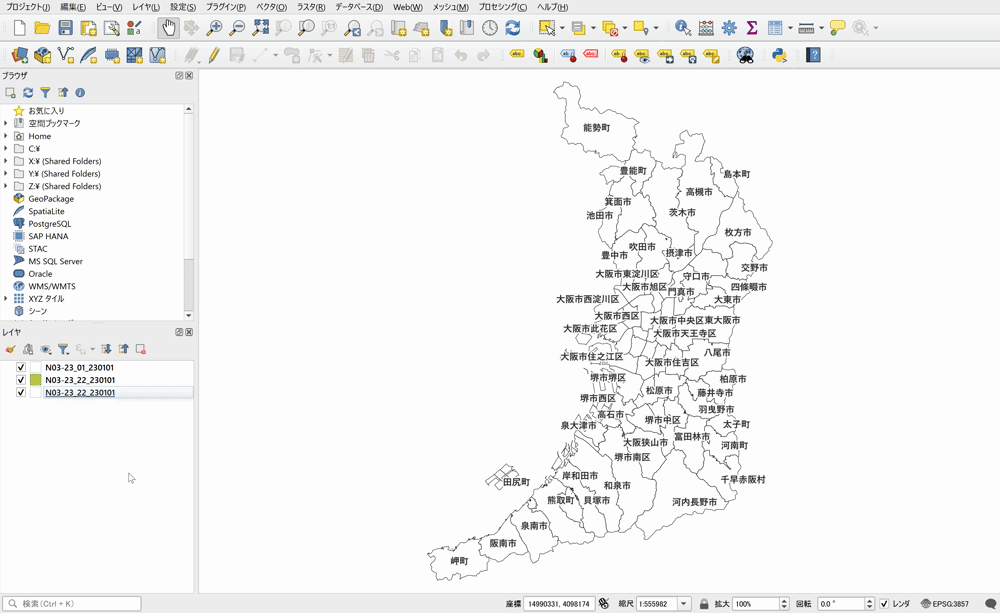
How to use a style file
There are two main ways to use a saved style file.
The first is to specify the style file in the layer properties. At the bottom of the Layer Properties dialog, click the Style button and select Load Style. Select the style file you want to apply, then click Load Style to load it.
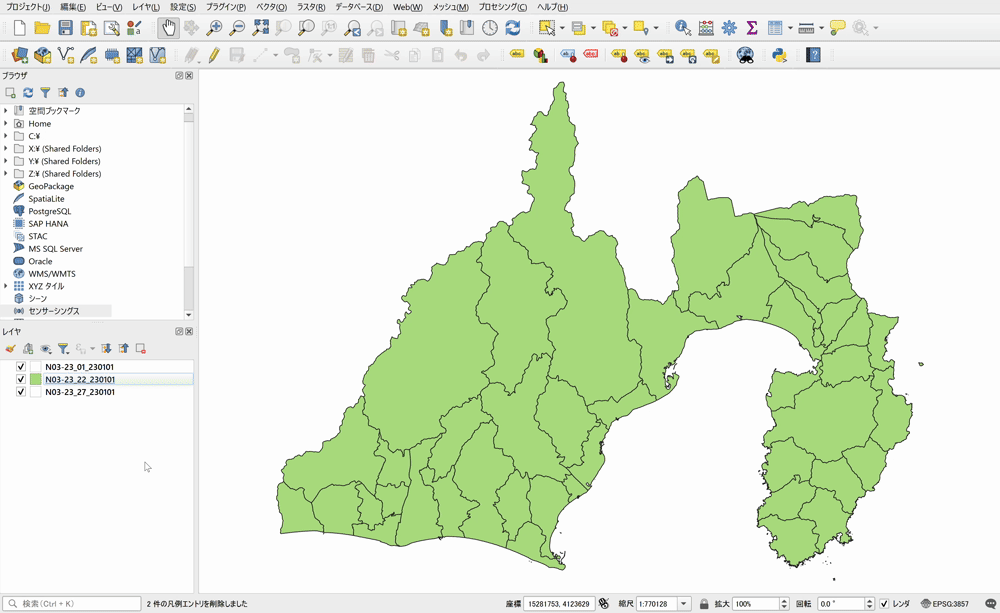
The second is to use automatic application. Place the QML file in the same directory as the layer you want to style, and give it the same name as the layer's file, with only the extension changed to .qml. Then QGIS applies the style automatically when you add the layer. For example, put roads.qml in the same folder as roads.gpkg. You no longer need to apply the style by hand each time, which is handy when you work with standardized data repeatedly.
Style Manager
When you want to manage multiple styles together, use the Style Manager. Open it from Settings → Style Manager in the menu.

In the Style Manager, you can register symbols, color ramps, label settings, text formats, and more as items and manage them. If you register frequently used fills, strokes, and color schemes in advance, you can call them up from the symbology settings whenever you need them, without setting them up each time.
You can also export and import registered styles. To use common style settings across a team, share this file so that every member can style layers the same way.
Save as Default
So far, this article has covered ways to export styles as files. QGIS also has a mechanism to reuse and manage styles without going through a file.
The Save as Default feature creates a .qml file in the same directory as the layer, just like the automatic application described earlier. However, if you do not need to share the style file, this feature is more convenient, because you do not have to match the names of the style file and the layer.
At the bottom of the Layer Properties dialog, click the Style button and select Save as Default to register the layer's style as the default. After that, the saved style is applied automatically the next time you load the same data.
For example, save a style as the default, remove the layer, and add it again. The same style is applied. You can also see that the .qml file is saved in the same directory.
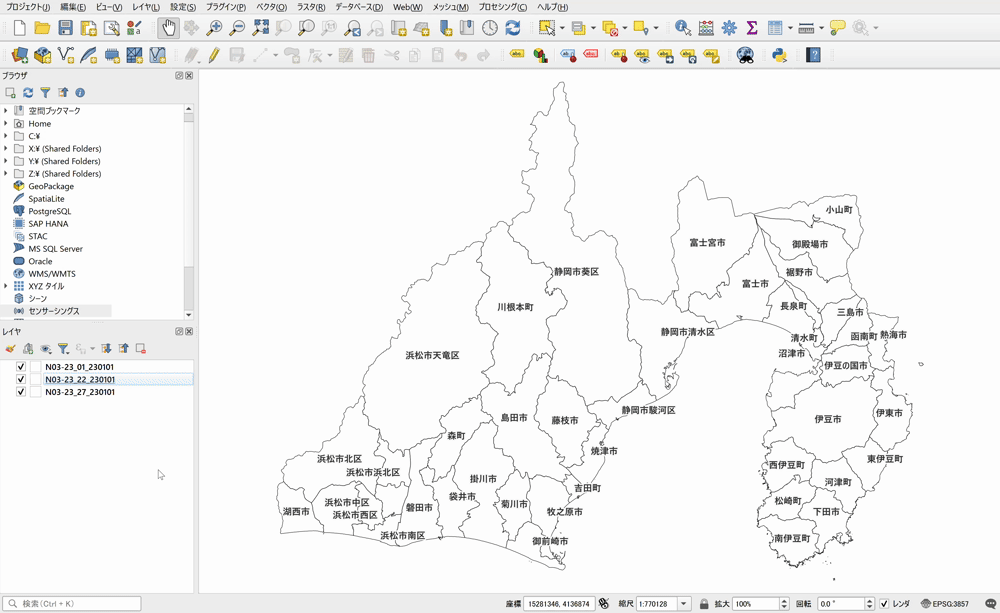
Register and switch between multiple styles on one layer
QGIS lets you register multiple styles for a single layer and switch between them as needed. Right-click the layer and select Styles → Add to register a new style under a different name without overwriting the current style.
Saving a style normally overwrites the current settings. When you register a style with a name using Add, QGIS creates it as a new style instead of overwriting. To switch between registered styles, right-click the layer and select one from Styles with a single click.
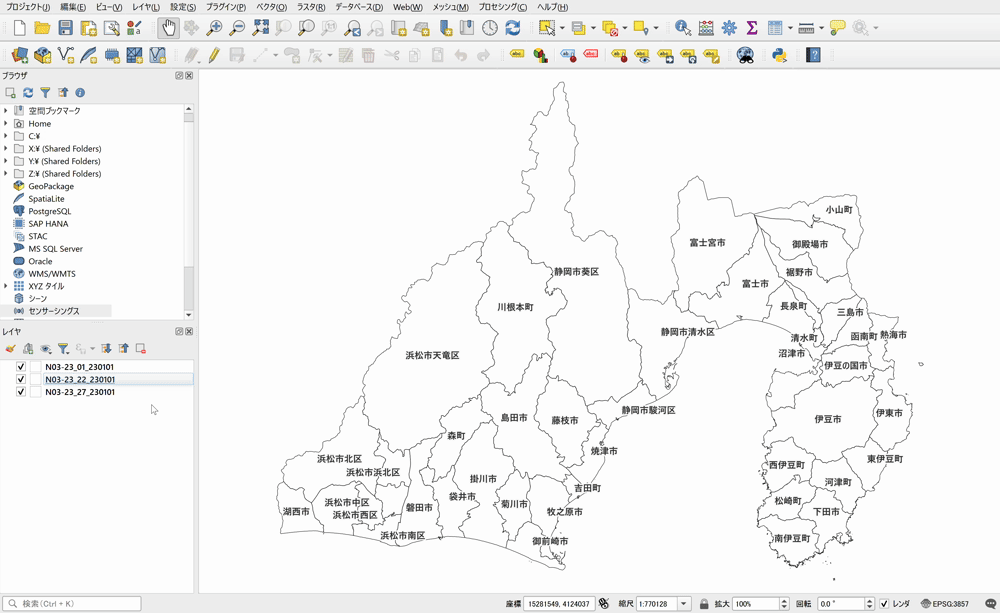
For example, suppose you want two styles for an administrative area layer. One shows stroke lines and municipality name labels, and the other fills the municipalities by area using continuous values.
In this case, instead of preparing a layer for each style, you can add the settings and save them, and then just switch styles on a single layer. This is convenient.
Conclusion
There are many ways to set up styles in QGIS to suit the situation and purpose, not just setting them one by one from the layer properties: previewing in the Layer Styling panel, copying and pasting styles, managing and sharing them with style files and the Style Manager, and adding styles.
Knowing these methods can raise your efficiency and make your everyday QGIS work much more comfortable. Give them a try.
Data used
- Adapted from “National Land Numerical Information (Administrative Area Data)” (Ministry of Land, Infrastructure, Transport and Tourism)

QGIS LAB is a comprehensive information hub for QGIS, the open-source GIS software. Under the concept of “Geospatial for Greater Good,” we share the knowledge and skills to open up the world through location data.


